
My Detailed reMarkable 2 Review

I have recently discovered that I love writing on paper. It allows me to escape the digital world, and writing on paper will enable me to think without distractions.
But paper can be messy. You deal with flipping through pages, smudging, difficult-to-fix mistakes, and the inability to move things, among other issues. While some argue this enhances the experience, others may find a better solution.
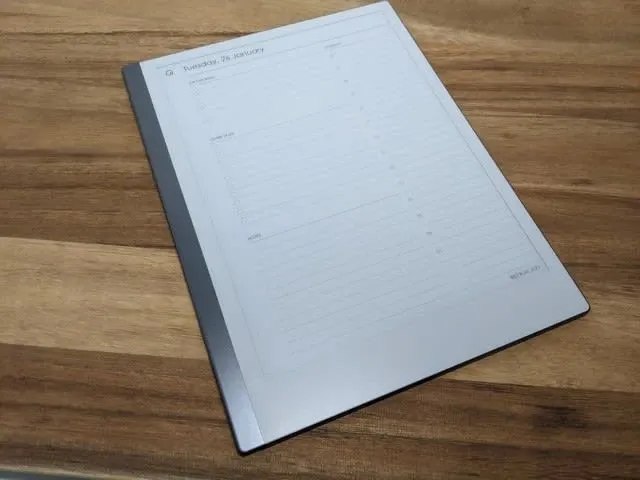
The reMarkable 2 is an e-ink device, similar to a Kindle, but built for writing. The reMarkable aims to replicate the feel of paper, offering a distraction-free writing environment while providing digital advantages.
You may love using the reMarkable 2 if:
- You enjoy writing on paper.
- You want a distraction-free place to write.
- You want to keep your notes backed up automatically.
- You would like to share your notes easily.
- You would rather not keep buying paper planners or notebooks.
- You favor unlimited pages.
- You would like to be able to quickly search for notes.
- You hope to be able to correct mistakes, rearrange content, and make updates easily.
- You also want to read and annotate.
This article is my in-depth device review, including the hardware and software. It includes what I like and what I don’t like. I hope it will help you if you decide to purchase a reMarkable 2.
First Impressions of the Hardware
The hardware is stunning. It is thin and light, and the all-aluminum body gives it a nice, solid feel. It is like holding a slate; a solid strip on the left gives it a pleasant look.
The material is the same on both sides. The back features four rubber nubs to prevent the device from sliding on a solid surface. The right side of the device has a magnet for attaching the marker.
The battery life seems excellent. I haven’t had the device long enough to determine its exact lifespan. So far, I’ve had the tablet for 6 days and have charged it only once, and it was at about 70% when I received it. reMarkable says “weeks of battery,” but that depends on how much you use the device. I probably have it turned on for several hours per day.
It’s difficult to complain about anything on the hardware itself. If anything, the screen margins are pretty thick, especially at the bottom. It’s difficult to notice until you are writing and start to run out of space on the page.
Tip: You’ll need an external light source to see the screen. Don’t expect to read in the dark!
The other thing to note is that this device has no backlight. No backlight means you require an external light source to see the screen.
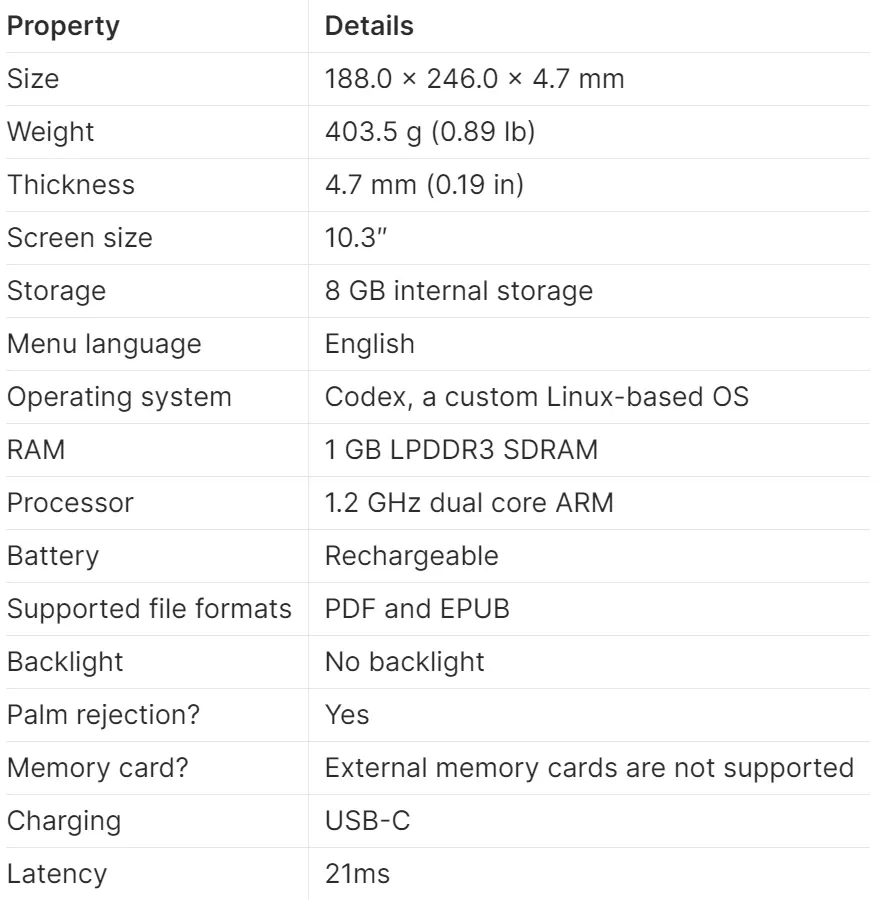
Technical Specifications
reMarkable Marker
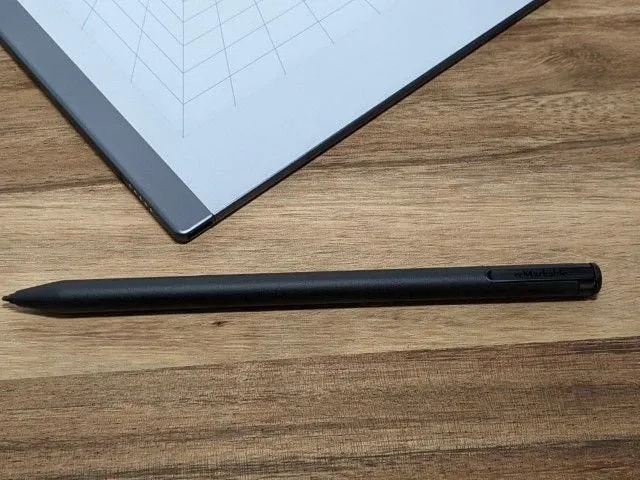
You can get either the regular Marker or the Marker Plus. The marker is white and has no buttons or eraser. I haven’t used one, but from my research, people say it feels nice and has a nice texture.
The Marker Plus is what I have, and the primary differences are that 1) it’s black, and 2) it comes with an eraser. The texture is excellent, and it has a pleasant weight. One side is flat, which serves two purposes: 1) to keep it from rolling off your desk, and 2) to attach to the device magnetically. I have had no problems writing with it. I also don’t feel it will easily detach from the device unless you toss it in a bag.
Is the extra $50 for the Marker Plus if it includes an eraser? I believe it is. If you are like me and always messing up, it is simple to flip the marker over and quickly erase it. It saves a lot of time.
Neither marker needs to be charged.
The biggest downside of the marker is the tips. The tips are replaceable because they wear down. I have not had mine long enough to know how long they last. Based on my research, it could be every week to every six weeks. The reMarkable comes with nine extra tips and a way to replace them. The marker tips currently cost $14 for a replacement pack.
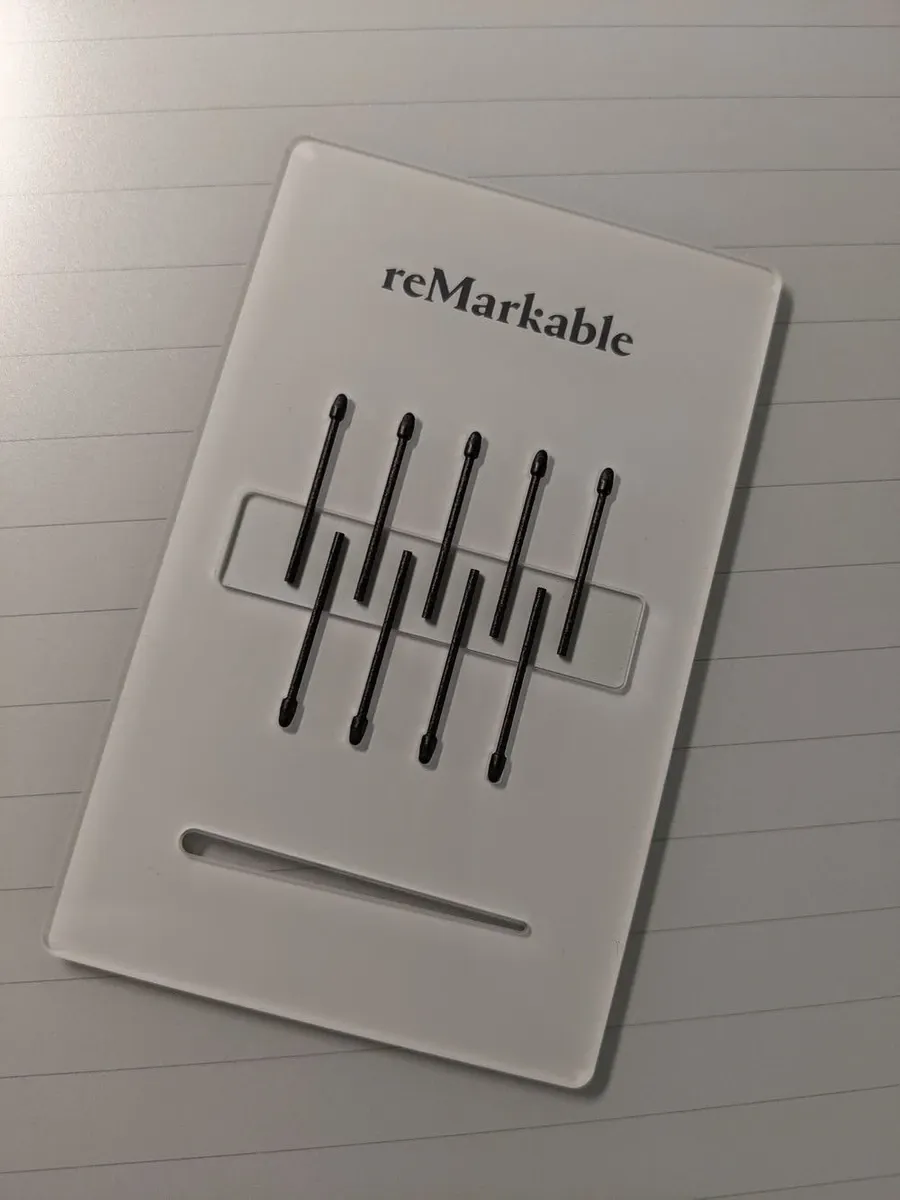
Tip (pun intended): Don’t forget about the tips. It can be easy to miss them in the packaging. You’ll want to set them aside where you can find them again.
The Book Folio
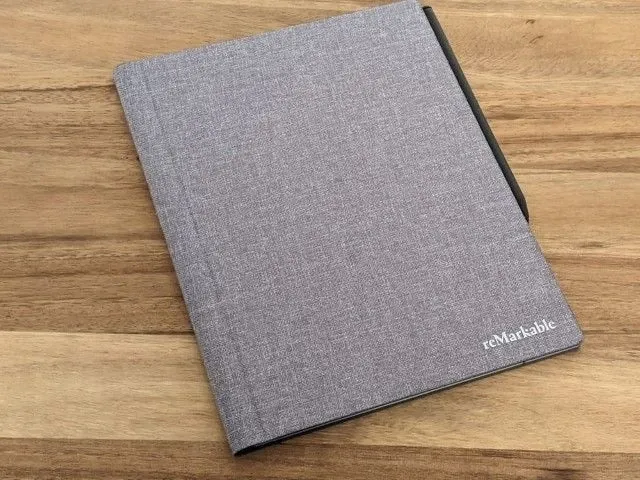
I opted for the Gray Book Folio (Polymer Weave). It is very thin and covers the device nicely. Removing the reMarkable from the cover is effortless, yet it stays in place firmly.
The material is acceptable—nothing to get excited over. It doesn’t feel worth $99. But it’s cheaper than the $149 leather Book Folio (which I hear doesn’t feel like natural leather). It’s probably worth getting just because it helps protect your investment.
First Impressions of the Software
I was running version 2.5.0.27 when I wrote this since there have been drastic software improvements!
I had no problems figuring out how to use the software. It is very straightforward. Your main screen consists of your folders and files. Across the top are options to open the menu, create a folder, create a notebook, access Quick Sheets, or search. You can see the battery life, Wi-Fi connection, and sync status across the bottom of the main screen.
I won’t go into details about the software interface; I think it works well and runs smoothly. It’s best to remember that this is an e-ink device, and that page refreshes differ from those on a typical tablet. I feel like the refresh rate is faster than on my Kindle Paperwhite, and I have not had any performance issues.
Occasionally the swipe event doesn’t register, and I have to swipe multiple times to get it to switch between pages or close a notebook. It is not an issue if you swipe in the right place and with enough motion.
Tip: You can close any notebook or PDF you are on by swiping down from the top of the screen. Much faster than trying to use the menu.
Layers
You can create layers on your page, allowing you to manipulate one layer without affecting the other. Create detailed sketches and diagrams, or overlay text on a custom background.
Text
Another cool feature is the ability to convert your handwriting to text. This feature works as well as can be expected. Your writing must be clear enough for it to be recognized. You can only convert one or more pages to text. Once the conversion is complete, you have no choice but to email it somewhere. You can’t save the converted text to the device.
Tip: You need to connect to Wi-Fi for text conversion.
Templates
The device comes with many built-in templates that you can use. The built-in templates include everything from dots to standard notebook lines with margins.
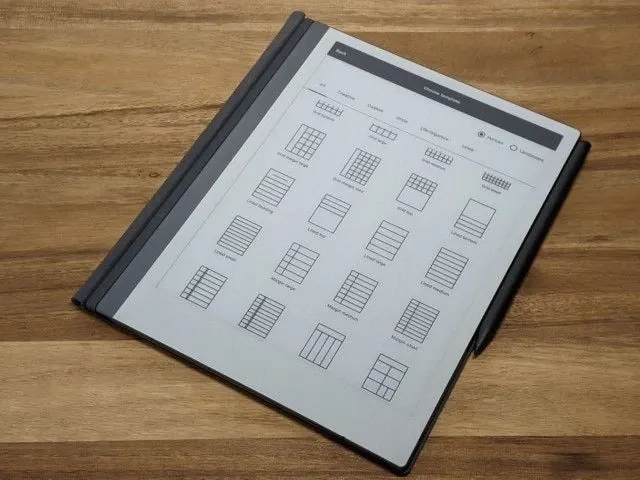
I immediately found myself unable to locate the templates I wanted to use. Fortunately, you can add your custom templates with a bit of know-how. For more information, you can look at some of my additional resources at the bottom of this article.
Fortunately, you can also use a PDF for your daily planner notebook type. You can find them everywhere, and Etsy is an excellent place to start. I added some more resources to the bottom of this article.
Sharing
You can share pages, entire notebooks, or PDFs from the device. You’ll be prompted to enter an email address or select an email you already used. Furthermore, you can add a message, change the filename, and select an export format (PDF, PNG, or SVG). The feature works well enough.
Tip: You can always download the PDF on your desktop and do what you want with it from there.
Search
You can easily search for any notebook, PDF, or EPUB on your device from the search icon. You will also see the most recently updated files on your device, making it easy to switch back and forth.
Unfortunately, your notes and files’ content is not searched—only the file names and folders.
Cloud Sync
While using the reMarkable Cloud Sync is not required, it is difficult to avoid. The advantage of using Cloud Sync is that your content is automatically backed up to the cloud and available on your other devices.
The cloud sync works okay and is not instantaneous (usually), but it gets the job done.
The “Read on reMarkable” Browser Extension
There is a new browser extension from the Remarkable team called “Read on reMarkable.“ This extension lets you send nearly any webpage to your device with a single click. You have two options. The default is to send the page to the device in EPUB format. This method looks excellent, but it lacks the source and images. So, I switched my default to PDF. The page is converted to PDF with this setting and sent directly to your device. The PDF option includes images and more information about the article.
The content’s appearance on the device is inconsistent. It depends on the source content. If the page is full of ads and poorly formatted, it will be low quality on the device. I’ve found that sites with a clean format look great on the device.
Tip: Use the PDF format to include images and the source for your articles.
Desktop and Mobile
Speaking of Cloud Sync, you can access your content from your desktop or mobile devices. The desktop and mobile software is nothing spectacular; it merely shows you your content, just as you would see on your device. You can then read, rearrange, or export your content as needed.
Jagged Line Issue
Tip: This could be a deal-breaker for some. I don’t feel like it is an issue, as I don’t notice it unless I’m looking for it.
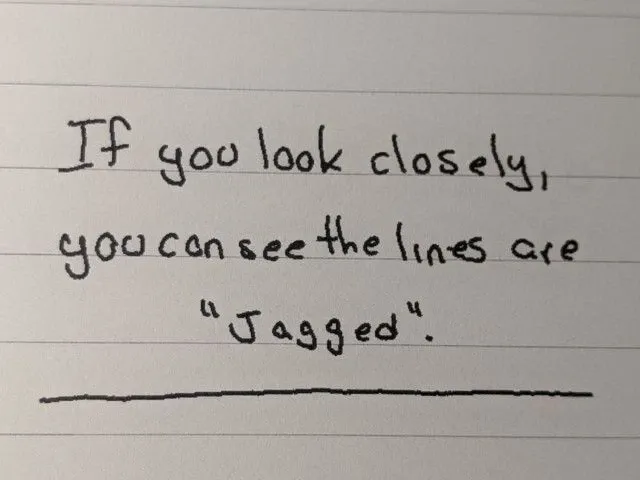
Updated March 27, 2021: The reMarkable team released version 2.6, which addresses this issue.
The “jagged line issue” is one of the annoying things I found with Remarkable 2. If you look very closely at the writing (zoom in if it helps), you can see the lines are not smooth and jagged, depending on how you write. You can see a very (extremely detailed) video that explains the issue here.
The Writing Experience
Okay, you want to know how this table feels when writing.
It feels remarkable, like writing on paper!
One of the things I enjoy about writing on paper is its distraction-free nature, and the ”feeling” of writing helps me slow down and think. I get the same feeling while writing on the Remarkable. In addition, I can easily erase, move things around, convert to text, and search.
My writing is better when using the reMarkable. I write minimal on paper, while on the reMarkable, I have more space and write larger and, therefore, more legibly.
The latency is about 21 ms, which is the best in the market. There is very little noticeable lag when writing.
The Reading Experience
I have limited experience with the device’s reading functionality. But here is what I have discovered so far.
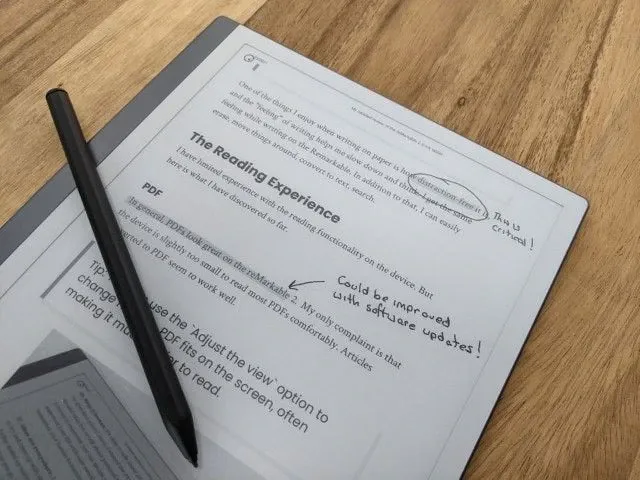
In general, PDFs look great on the reMarkable 2. My only complaint is that the device is too small to comfortably read most PDFs. Articles converted to PDF work well.
EPUB
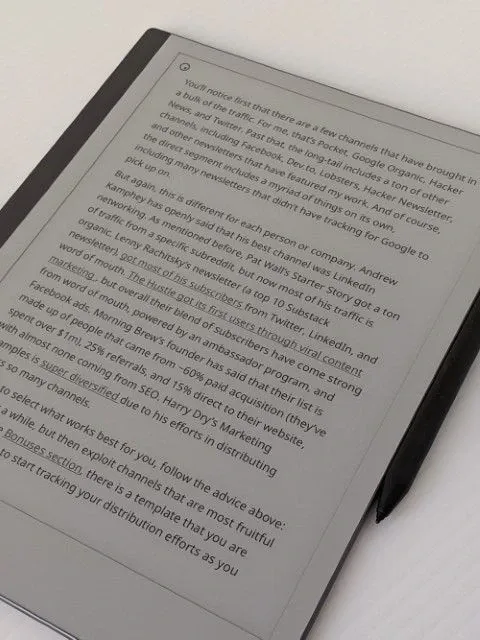
I added one EPUB to the device, Doing Content Right, by Steph Smith. It looks great! I’ve had no problems, and it has been much easier to read than the PDF version.
Tip: You cannot read your Kindle books on this device.
The Price
- The reMarkable itself is $399.
- The Marker is $49. The Marker Plus is $99.
- The Folios start at $69 and go up to $149.
⠀ My setup, the reMarkable with the Marker Plus and Book Folio, came to $597 before tax. Ouch!
Tip: Yes, you see that correctly. The reMarkable writing device does not include a Marker, which is ridiculous!
What would make the reMarkable 2 better?
- Fix the jagged lines issue. (reMarkable fixed the Jagged Lines issue in version 2.6.)
- Include the content, even your handwritten notes, in search results.
- Faster sync.
- More text conversion options.
- Provide better formatting for both PDF and EPUB.
- Better support. I haven’t needed to contact the reMarkable support team, but I’ve heard their response times aren’t great.
- Provide more support for accessing your content without using Cloud Sync.
It is worth purchasing a reMarkable 2 if you enjoy writing and prefer using paper for organizing your day. Taking meeting notes, writing down your thoughts, drafting articles, making sketches and diagrams, disconnecting from the world, and getting lost in your thoughts are all excellent.
While I love the reMarkable 2 and use it daily as part of my workflow, it is not a perfect device. Software updates could resolve some existing problems.
If you’re looking for a distraction-free digital writing device, I highly recommend it.